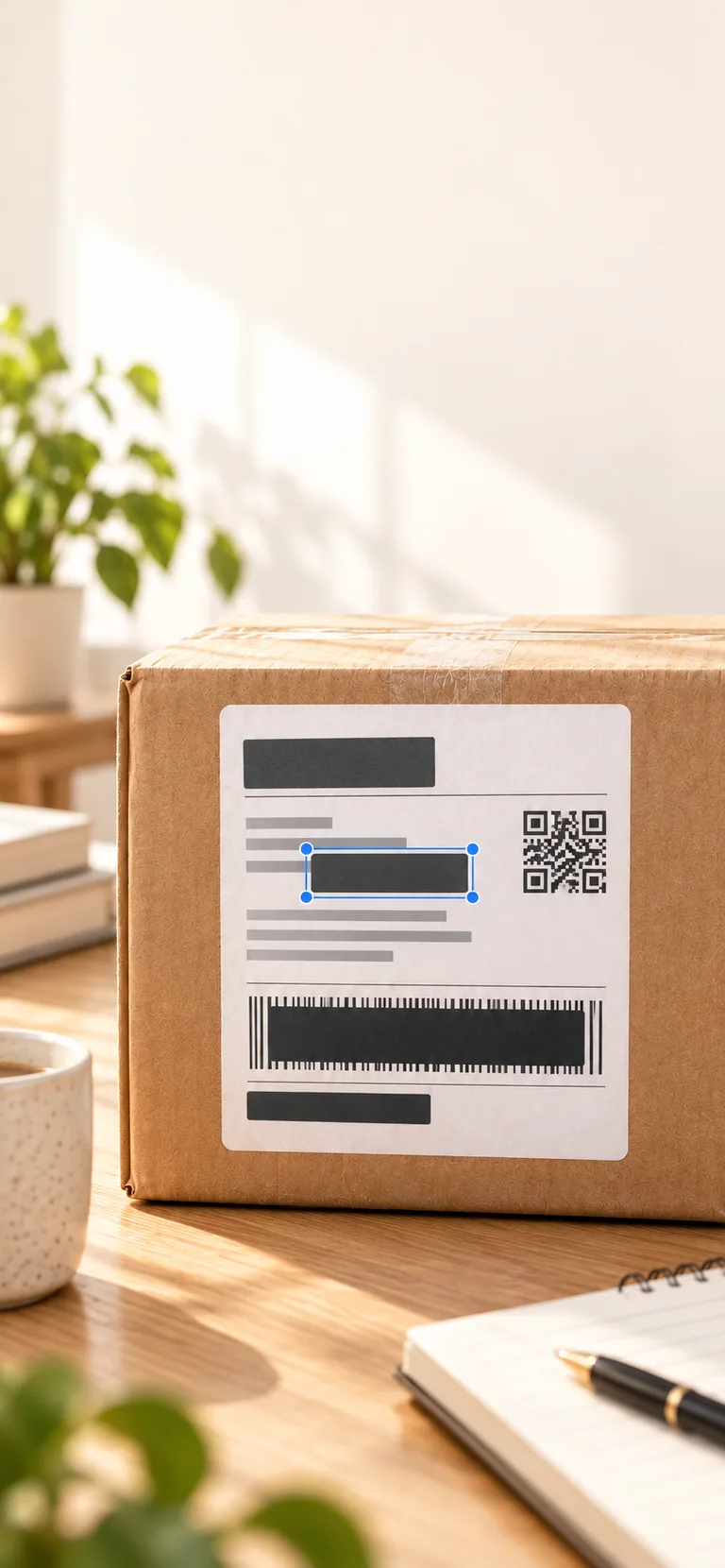
Screenshots can expose email addresses, phone numbers, addresses, account details, IDs, faces, QR codes, and barcodes. HushPic suggests areas to cover, lets you review every mask, and verifies the final copy.
HushPic app for iPhone and Android · This page is a guide, not a browser editor.
Answer and scope
What should you review before sharing a redacted screenshot?
Review names, avatars, notifications, account details, codes, and repeated information across the whole screenshot, not only its central message. Use an editor to cover details the recipient does not need and inspect the saved copy at readable size. HushPic offers local suggestions and editable rectangular masks, then checks supported metadata on a separate output. Suggestions may miss details or select too much. Verification does not prove anonymity, and redactions on a copy do not change the original screenshot. This page is not a browser redaction tool.
Checks you can make before sharing
Keep the needed context while checking headers, corners, quoted replies and overlapping screenshots.
Cover the whole private region, then open the saved output and confirm the actual pixels are covered.
Review hidden metadata independently and attach the checked output rather than the original or an editable project.
Evidence and attribution
HushPic product scope: First-party description of supported processing and post-write checks; not an independent certification.
A screenshot may include a small address in a header, a QR code in the corner, a face thumbnail, or an account number inside a chat. Automatic detection can help, but it can also miss details or cover too much.
The HushPic approach
Suggestions stay under your control.
HushPic runs supported detection on device, applies suggested masks, and lets you move, resize, add, or remove areas. After adjustment it generates a new copy and re-scans the supported metadata before sharing.
How it works
How to redact a screenshot with HushPic
1Select the screenshot
Choose the screenshot with the context the recipient needs. Include the edges in your review, not only the message or payment in the center.
2Process on device
HushPic automatically scans supported text, faces, and codes, applies suggested masks, and checks supported metadata on a separate copy.
3Review at readable size
Inspect names, notifications, account details, small avatars, and QR codes. Use Review / Adjust to add a missed region or change a suggestion, then generate again.
4Send the final copy
Preview the current verified copy before sharing. Redaction does not change the original screenshot, so sharing the original would still expose its pixels.
Supported on-device checks include faces, phone numbers, email addresses, addresses, IDs or card-like numbers, QR codes, barcodes, and other candidate text regions.
Is automatic redaction always correct?
No. Detection may miss a detail or select too much. HushPic keeps review and manual adjustment available before you share the result.
Can I add my own redaction area?
Yes. You can add a rectangular mask, move it, resize it from the corners, or delete an unnecessary suggestion.
Does HushPic upload the screenshot for AI processing?
No. Photo contents and OCR text stay on the device. Supported visual detection runs locally, and there is no cloud-processing fallback for the image.
Does screenshot redaction also remove metadata?
For processable files, HushPic clears detected private metadata and verifies the generated copy as part of the same flow.
Can I share the original after redacting it?
Redactions appear only in the generated copy. The original stays unchanged and is not included in the verified-copy share set.
Privacy check before sharing
Check the exact photo, then share a verified copy.
HushPic keeps photo processing on your device and leaves the original unchanged.