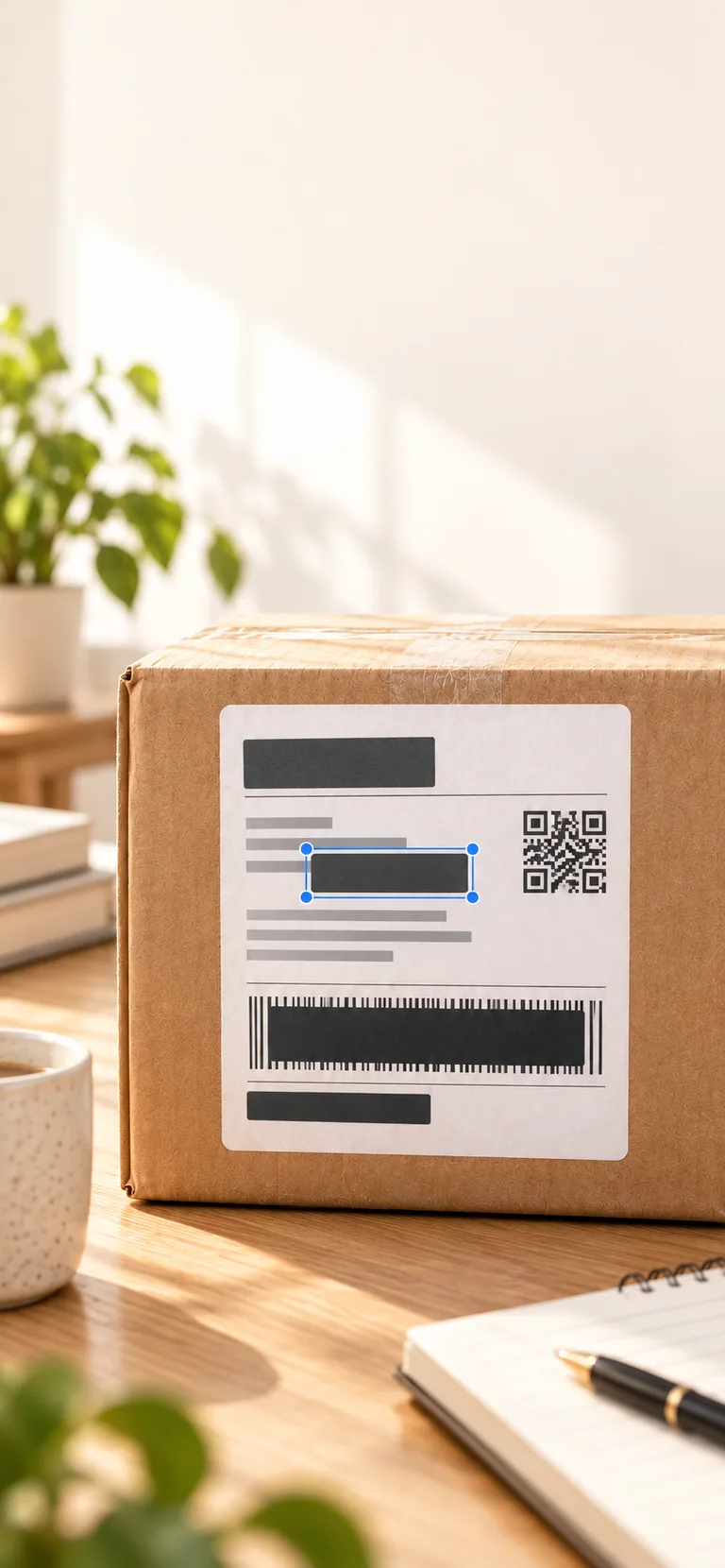
Photos of parcels, receipts, documents, screens, and everyday scenes can expose names, addresses, account details, IDs, faces, QR codes, and barcodes. HushPic suggests areas to cover, keeps every mask editable, and verifies a separate copy.
HushPic app for iPhone and Android · This page is a guide, not a browser editor.
Answer and scope
How do you redact a photo without losing useful context?
Work on a separate copy and cover only information the intended recipient does not need, then inspect the entire saved image. Parcel labels, receipts, background documents, reflections, faces, and codes need different checks. HushPic suggests supported regions, lets you add or adjust masks, and re-scans supported metadata after writing a copy. Automatic suggestions can miss information. A checked output does not guarantee that a person or place cannot be identified from remaining context, and the original remains unchanged.
Checks you can make before sharing
Decide the audience and purpose before editing; keep an unedited original for your records.
Inspect foreground and background details, including repeated labels and reflections; add missed masks.
Open the actual output, check its metadata and pixels, and attach that copy. Do not alter a working document needed for delivery or identification.
Evidence and attribution
HushPic product scope: First-party description of supported processing and post-write checks; not an independent certification.
Shipping-label photo checklist: First-party checklist for a concrete redaction scenario; edit a photo copy rather than the active shipping label.
A shipping label in the background, a name on a document, or a QR code near the edge can be easy to miss. Cropping may remove context you want to keep, while a general photo editor does not check hidden metadata.
The HushPic approach
Review the whole photo before sharing.
HushPic checks supported visible and hidden privacy risks in one flow. Suggested regions remain under your control, and only copies that pass the supported post-write checks enter the share and save set.
How it works
How to redact a photo without overwriting it
1Pick the source
Choose the parcel, receipt, document, or scene you want to share. Decide which details the recipient actually needs.
2Create a processed copy
HushPic automatically scans supported metadata and visible details, clears detected private fields, and applies suggested masks on a separate copy.
3Inspect the whole frame
Look at labels, reflections, background documents, faces, and codes. Adjust or add a region in Review / Adjust, then regenerate the copy.
4Share the current result
Use the copy that passed the supported post-write checks. Automatic suggestions can miss information; metadata verification does not replace your visual review.
Common examples include parcel labels, receipts, documents, tickets, workplace photos, whiteboards, and any image with a person or account detail you do not want to share.
Does automatic detection find everything?
No. Suggestions can miss details or select too much. Review the full image and add or remove masks before sharing.
Can I keep the useful part of the photo?
Yes. Redaction covers selected regions on a separate copy, so you can keep the context you intended to share.
Does redacting a photo remove its location?
For processable files, HushPic also clears detected private metadata and verifies the written copy within its supported scope.
Will HushPic overwrite my original?
No. The source remains unchanged. Sharing and saving use only the generated copy that passed verification.
Privacy check before sharing
Check the exact photo, then share a verified copy.
HushPic keeps photo processing on your device and leaves the original unchanged.